
Raycast Commands: A New Performance Era
Learn how to stop your current raycasts from stealing performance and upgrade them to the new era of Unity raycast commands that finally scale

Check the original blog post at The Gamedev Guru: Unity Raycast Commands: A New Era
In this post, you will learn how to stop your current raycasts from stealing performance and upgrade them to the new era of Unity raycast commands that finally scale.
Table of Content

Raycasting “The Traditional Way” in Unity
I’ll start by saying what high-performance developers feared and experienced all along: traditional raycasting doesn’t scale in Unity.
Calling a bunch of Physics.Raycast might be fine if your project is simple or you target 10 FPS, but in any other case you’ll want to do something else...
Something juicier...
Something that scales!
Let’s assume you want to color your crosshair depending on the “friendliness” of your target unit.
You could do something simple like this:
public class DummyCrosshair : MonoBehaviour
{
  // ...
  void Update()
  {
      bool didHitYa = Physics.Raycast(_cameraTransform.position, _cameraTransform.forward, out RaycastHit raycastHit);
      Color targetColor = Color.white;
      if (didHitYa)
      {
          if (raycastHit.collider.CompareTag("Player"))
          {
              targetColor = Color.green;
          }
          else if (raycastHit.collider.CompareTag("Enemy"))
          {
              targetColor = Color.red;
          }
      }
      _crosshairMaterial.SetColor("_Color", targetColor);
  }
}
And this is how it looks:
Crosshair Behavior
Easy, right?
After all, that was just a raycast.
Now, try to do traditional raycasting hundred times per frame without slowing your game to levels your users consider to be at the sucky level.
Even doing just a few of these raycasts is a no-go in complex projects where every drop of performance is the difference between being promoted to senior or staying as an intermediate programmer.
The main problem with traditional raycasting in Unity is that you are blocking the main thread. And blocking the main thread means angry players.
But worry no more. You are about to loot a new epic weapon that will kill these performance bottlenecks for good.
Let’s go!

The New Era: Unity Raycasting With Commands
So, how do you shoot raycasts without bothering your players through slower framerates?
Simple: by NOT blocking your main thread.
The way we avoid blocking your main thread is by using raycast commands. These commands are asynchronous, meaning that the computing happens in the background where it does not bother your user.
Only one catch...

You must change your mindset to use raycast commands in Unity. Asynchronous computing means that you don’t get the result now but in the future. So we must wait for results to be computed before coloring the crosshair.
Here are the main changes we must do:
- Create the command data structures: the list of commands to send, the list of results to get back and the job handle to keep track of its computation state.
- Complete and process the job results from last frame
- Schedule a new raycast job for next frame.
It’s not that difficult, even if it sounds complex. This is how it looks in code:
public class DummyCrosshair : MonoBehaviour
{
  // ...
  private NativeArray<RaycastCommand> _raycastCommands;
  private NativeArray<RaycastHit> _raycastHits;
  private JobHandle _jobHandle;

  void Awake()
  {
    _raycastCommands = new NativeArray<RaycastCommand>(1, Allocator.Persistent);
    _raycastHits = new NativeArray<RaycastHit>(1, Allocator.Persistent);
  }

  private void OnDestroy()
  {
    _jobHandle.Complete();
    _raycastCommands.Dispose();
    _raycastHits.Dispose();
  }

  void Update()
  {
    // 1. Process raycast from last frame
    _jobHandle.Complete();
    RaycastHit raycastHit = _raycastHits[0];
    bool didHitYa = raycastHit.collider != null;
    Color targetColor = Color.white;
    if (didHitYa)
    {
      if (raycastHit.collider.CompareTag("Player"))
      {
        targetColor = Color.green;
      }
      else if (raycastHit.collider.CompareTag("Enemy"))
      {
        targetColor = Color.red;
      }
    }
    _crosshairMaterial.SetColor("_Color", targetColor);

    // 2. Schedule new raycast
    _raycastCommands[0] = new RaycastCommand(_cameraTransform.position, _cameraTransform.forward);
    _jobHandle = RaycastCommand.ScheduleBatch(_raycastCommands, _raycastHits, 1);
  }
}
Now this solutions SCALES. As you can see, the raycast is now executed asynchronously in the background.
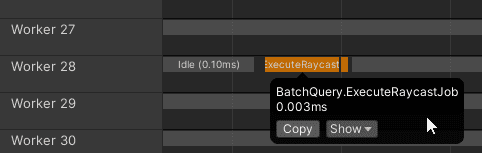
Juicy, isn’t it?
It’s not “Performance by Default” (TM) yet, but Unity is making it easier for us to develop efficient code (and maybe get promoted to senior?).

Is That All?
Not really, there’s still more to discover.
For example, using Unity raycast commands introduce latency because, well, they’re asynchronous. In our example, we’re talking about 1 frame. But hey, if you’re targeting 120 FPS, no user will notice one frame.
Another thing to keep in mind is that aycasting is just one feature among many in the entire Unity ecosystem. We’ve got volumetric sweeps, checks, overlaps and much more that I cover in the lesson #022 of the Unity Performance Taskforce.
Using commands correctly becomes critical when you upgrade to volumetric sweeps because they’re exponentially more expensive. These sweeps are commonly used in game development, for example if your project uses player collisions, AI, planning, navigation and more.
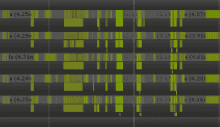
Using all workers for maximum performance
If you want to know more about raycasts, make sure to watch the full lesson in the Unity Performance Taskforce. You can join the trial and well, I’ll be happy if you stay because you’ll like it :)
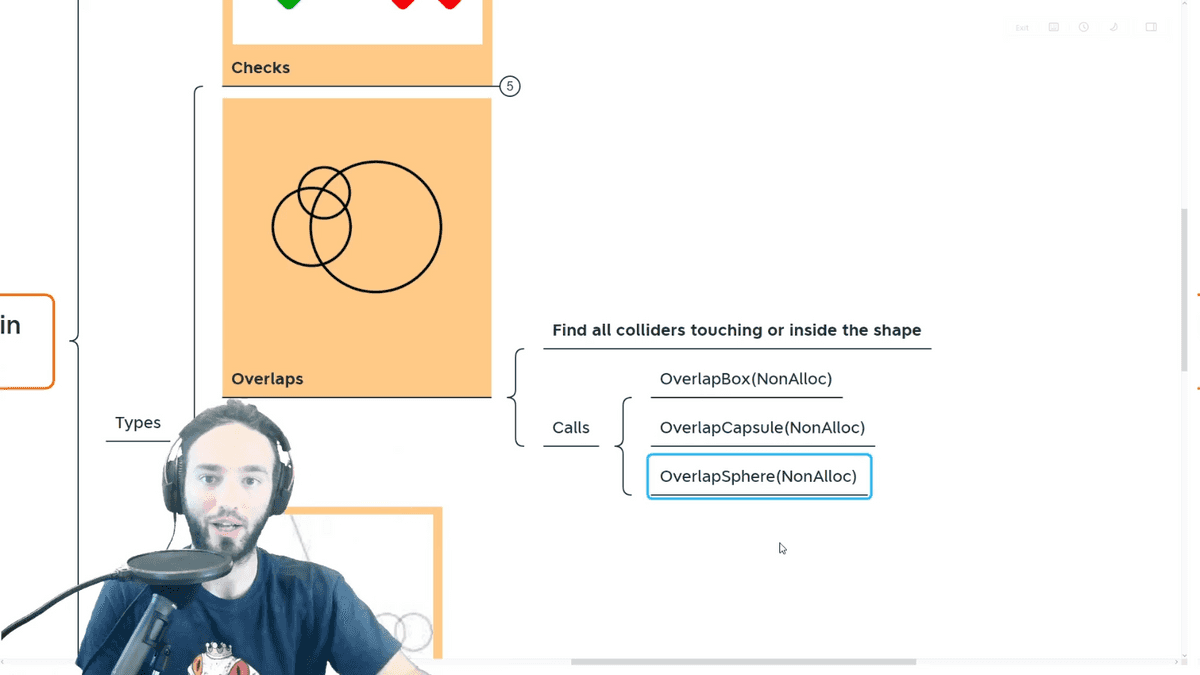
Unity Performance Taskforce
Hope this was useful for you!
Ruben (The Gamedev Guru)
Recommended resources
Game Engines

Unreal Engine 5 Best Practices
Amazon · Book
Written by multi-award-winning Unreal generalist Tyson J. Butler-Boschma, Founder and Creative Director of Toybox Games Studios, this book addresses common challenges you face when advancing your expertise in lighting, environment design, and cinematic storytelling.
GameDev.net may earn a commission if you purchase through these links. This helps fund the site at no extra cost to you.
Related Tutorials
Balancing Game Development and Creative Direction in Indie Production
A practical look at how indie developers can balance creative direction with hands-on game development. This article co…
 huseyin_onur
My Unreal Engine Development Process: From Core Idea to Playable Build
A practical overview of my Unreal Engine development process, covering how I move from a core game idea to a playable b…
huseyin_onur

Introducing LaneGraph: The Ultimate Road Network Solution for Unity
Discover the power of LaneGraph, a lightweight and flexible lane-based navigation system for Unity. LaneGraph makes it…
Retargeting Mixamo Characters with Root Motion In Unreal Engine 5.4.
I have always found Retargeting Mixamo Characters To have Root Motion is a serious lengthy Tast, Recently I stumbled up…

How To Make A SIMPLE Main Menu In Unity
In this tutorial for unity, i go over how to make a simple main menu for unity, it's an unlisted video because i do not…
 FlipThaSwitzh

Guide to Gameplay Balance
A perspective on competitive gameplay balance, from a background of "shooter" sandbox design.
 Tucker933
Discussion
More from Ruben Torres Bonet (The Gamedev Guru)

Static Batching Like You Never Saw
Most developers think they know how static batching truly works. But that’s a lie: they don’t.
Ruben Torres Bonet (The Gamedev Guru)
Don't Let Offscreen Objects Ruin Your Performance - Unity CullingGroup API
Learn how to make your expensive scripts cost nothing while they are offscreen.
Ruben Torres Bonet (The Gamedev Guru)
The "KISS" Command Pattern for Unity
Learn about the lovely KISS Command Pattern in Unity I cannot live without. Enjoy powerful async gameplay systems!
Ruben Torres Bonet (The Gamedev Guru)
Discussion