
Making a map (editor)
.thumb.png.a9a17286792efc179caccc72c3e67c21.png)
When it comes to populating the game world with objects I didn't want to have to spent months building a map editor, I only need something fairly simple and creating a feature-rich editor with a whizzy GUI seemed like such a waste of time and effort. I've been down that road before and ended up building (and selling) a visual scripting framework but ultimately never finished the game I was working on at the time.
So how did I decide to approach this without having to create a GUI for placing and transforming objects in the scene. Well, since this is a browser based game I have the Chrome debug console to hand... yep, with a few keyboard short-cuts and manual input in the debug console is how I decided to proceed; it's simple, unobtrusive and gets the job done without hassle.
One requirement is that I have an editor "class/module" that I can drop right in to my project and remove with ease when I want to push the project to a live environment. To make it independent of the game as such (i.e. I don't have to include a reference to the editor in any of the game code), I keep the instantiation of the editor separate from the main game and force it to wait (asynchronously) for the game to load (that's when the editor can do the rest of it's own initialisation).
e.g.
async function theGameHasFullyLoaded() {
    await new Promise( resolve => setTimeout( async () => {
        if ( game.gameTime ) {
            resolve( true );
        } else {
            await theGameHasFullyLoaded();
            resolve( true );
        }
    }, 2000 ) );

    return true;
}
I use a few keyboard shortcuts to rotate (R key), translate (T key) and scale (Y key... I'm already using S for player movement and R, T, Y are next to each other on the keyboard). While using rotate or translate I can switch between X, Y and Z axes by using the corresponding keys.
To place an object in the scene I hop over to the console and type...
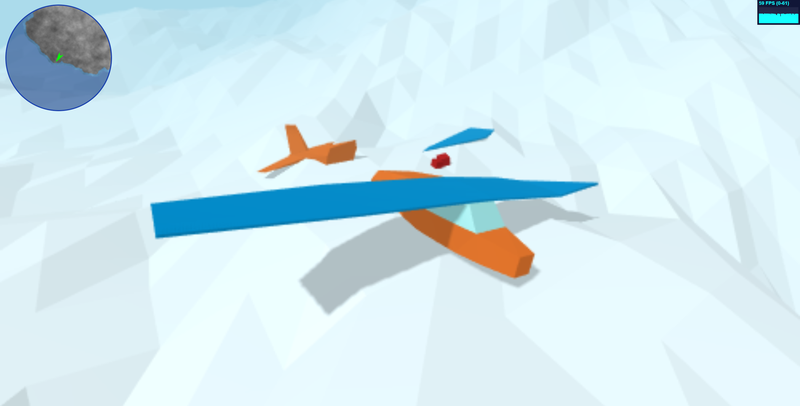
game.editor.selectModel("aircraft02").spawn()This spawns the selected model a little way in front of the camera. The newly spawned object then becomes the currently selected model which I can manipulate using my rotate, translate and scale keyboard shortcuts.
Once I've done editing I can save my changes by going back to the console and typing...
game.editor.save()This essentially just calls an action on my Node API which does the actual saving of data to a file.
I feel like I need a picture to liven up this blog post...

And that's about it for now. I need to add in basic collision meshes for these static objects yet. I'll probably just keep it simple and stick to cuboids and spheres for the sake of simplicity and performance.
When it comes to loading these static scene objects when the game starts, this is handled by a MapContentService which only loads the objects that exist within the required quadrants (i.e. dependent on where the player is on the map) - I won't call it a quadtree 'cos... well, it's not (nothing as sophisticated as that!) and would probably be overkill for my needs.
Recommended resources
3D Art

3D Environment Design with Blender 5
Amazon · Book
Based on Blender 5, this updated second edition simplifies the complexities by guiding you through clear, practical workflows to overcome those challenges. You’ll start by addressing common modeling and proportion mistakes, then move on to realistic texturing and unwrapping to create stunning scenes based on actual references.
GameDev.net may earn a commission if you purchase through these links. This helps fund the site at no extra cost to you.

Low Poly 3D Modeling in Blender
Amazon · Book
Step into the world of low poly 3D art with Low Poly 3D Modeling in Blender—your entry point into Blender and mastering the fundamentals of 3D art. This beginner-friendly guide ensures that you’re fully prepared for the creative adventure that follows. Through a step-by-step learning process starting with the principles of low poly art, this book gradually immerses you in the intricacies of modeling. As you progress, you’ll gain hands-on experience creating diverse projects ranging from designing a simple 3D crate to rendering complete low poly scenes. The book covers a wide spectrum of topics as you navigate Blender's interface, mastering essential modeling tools and exploring both basic and advanced modeling techniques. Advancing to the final chapters, you’ll find ways to breathe life into your models with material creation and gain practical insights into modeling a variety of low poly objects. From end-to-end scene construction to configuring Blender for rendering high-quality images, you’ll be equipped with the foundational skills to propel your career in 3D modeling and explore the boundless creative possibilities that Blender offers. By the end of this book, you'll have a solid understanding of Blender, 3D modeling, low poly methodologies, material design, 3D rendering techniques, and the broader world of 3D art.
GameDev.net may earn a commission if you purchase through these links. This helps fund the site at no extra cost to you.
Discussion