

Creating and animating Texture2D with C# code in Unity3D

Advertisement
using UnityEngine;

public class Main : MonoBehaviour
{
	GameObject targetObject;
	Texture2D texture;

	// Start is called before the first frame update
	void Start()
	{
		// Create object to which the texture will be applied
		targetObject = CreateTargetObject();

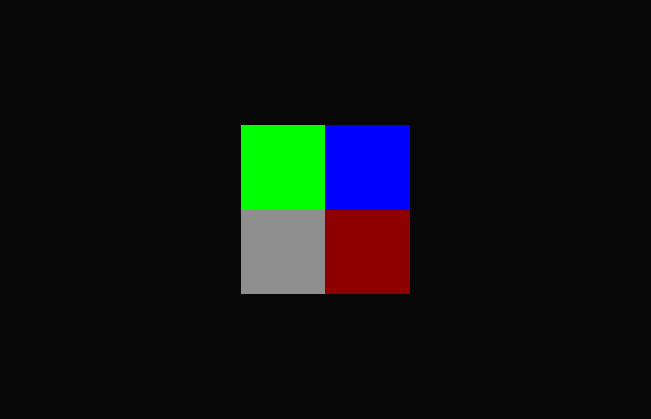
		// Create 2x2 texture -- ARGB32, 32 bit with alpha -- without mipmaps.
		texture = new Texture2D(2, 2, TextureFormat.ARGB32, false);

		// Put initial values (colors) for these 4 pixels.
		texture.SetPixel(0, 0, new Color(1.0F, 1.0F, 1.0F, 0.5F));
		texture.SetPixel(1, 0, Color.red);
		texture.SetPixel(0, 1, Color.green);
		texture.SetPixel(1, 1, Color.blue);

		// Set filtering mode to point, so that it looks crisp (for this experiment).
		texture.filterMode = FilterMode.Point;

		// Commit all SetPixel calls.
		texture.Apply();

		// Set the texture as a mainTexture for targetObject's MeshRenderer.
		targetObject.GetComponent<MeshRenderer>().material.mainTexture = texture;
	}


	// Helper function which creates instance of GameObject
	// having rectangular mesh attached to it.
	private GameObject CreateTargetObject()
	{
		var gameObject = new GameObject();

		var meshRenderer = gameObject.AddComponent<MeshRenderer>();
		var meshFilter = gameObject.AddComponent<MeshFilter>();
		meshRenderer.material = new Material(Shader.Find("Unlit/Texture"));

		var meshData = Diamonds.MeshData.Generate2DQuadMeshData(-.5f, -.5f, 1f, 1f);

		var mesh = meshData.GetAsMesh();

		meshFilter.sharedMesh = mesh;
		return gameObject;
	}

	// Update is called once per frame
	void Update() => Tick(Time.time /*Time from beggining of the process/game*/);
	private void Tick(float t)
	{
		// Animating texture programmatically
		texture.SetPixel(0, 0, new Color(t % 1F, t % 1F, t % 1F, 1F));
		texture.SetPixel(1, 0, new Color((t + 2f) % 2F, 0f, 0f, 1F));
		texture.SetPixel(0, 1, new Color(0f, (t + 4f) % 4F, 0f, 1F));
		texture.SetPixel(1, 1, new Color(0f, 0f, (t + 8f) % 8F, 1F));

		texture.Apply();
	}
}
To use the code:
- Import it in Unity3D
- Attach it, say, to Main Camera
- Make Main Camera look at (0,0,0) point
- Run
You shall see something like this (with pixel animating in boring way):
Previous
Interactive Hello World in C on Windows CMD
Next
Calling x86-64 Assembly code from C#.NET Program
Advertisement
Advertisement
Advertisement
Discussion