
Visual Studio Graphics Content Pipeline for C# Projects
In this article we will look at how to use the graphics content pipeline for C# in both Visual Studio 2012 and Visual Studio 2013 for Desktop and Windows Store apps.<br />
Graphics content pipeline for C#
Thankfully it is quite simple to get this to work for our C# projects by making a few minor tweaks to the MSBuild target XML definitions. These build targets are defined in files named *Task.targets within the directories- C:\Program Files (x86)\Microsoft Visual Studio 12.0\Common7\IDE\Extensions\Microsoft\VsGraphics
OR - C:\Program Files (x86)\Microsoft Visual Studio 11.0\Common7\IDE\Extensions\Microsoft\VsGraphics
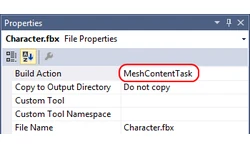
<Project ...> ... <Import Project="ImageContentTask.targets" /> <Import Project="MeshContentTask.targets" /> <Import Project="ShaderGraphContentTask.targets" /> </Project> Reload your project, select a graphics resource such as a 3D model and then apply the appropriate Build Action, as shown in the following screenshot. Controlling the graphics content pipeline task properties
In order to pass through options to the task for C# projects it is necessary to edit the associated *.props file. This contains a section for default settings. For example the ImageContentTask allows you to determine whether or not to generate mip levels. The following XML shows the available ImageContentTask parameters found in ImageContentTask.target <ImageContentTask Source = "%(ImageContentTask.Identity)" ContentOutput = "%(ImageContentTask.ContentOutput)" Compress = "%(ImageContentTask.Compress)" GeneratePremultipliedAlpha = "%(ImageContentTask.GeneratePremultipliedAlpha)" GenerateMips = "%(ImageContentTask.GenerateMips)" TLogDir = "$(ProjectDir)obj\$(ConfigurationName)" IsDebugBuild = "$(UseDebugLibraries)" /> And the following XML extract shows the appropriate section within ImageContentTask.props that you would need to update. <ImageContentTask> <!--Enter Defaults Here--> <ContentOutput Condition="'%(ImageContentTask.ContentOutput)' == '' and !$(DefineConstants.Contains('NETFX_CORE'))">$(OutDir)%(RelativeDir)%(Filename).dds</ContentOutput> <ContentOutput Condition="'%(ImageContentTask.ContentOutput)' == '' and $(DefineConstants.Contains('NETFX_CORE'))">$(OutDir)AppX\%(RelativeDir)%(Filename).dds</ContentOutput> </ImageContentTask> Conclusion
Visual Studio 2012 brought with it some significant improvements for graphics / Direct3D programming for the C++ world, however it left C# developers a little short. By integrating the graphics content pipeline with your C# project you can then make use of these great features.Further reading
Direct3D Rendering Cookbook by Justin Stenning and published by Packt Publishing provides further examples of how to work with Direct3D in C# using SharpDX and the Visual Studio graphics content pipeline.Article Update Log
20 Mar 2014: Initial releaseRelated Tutorials

Procedural Generation of 2D Tile Maps in Games
The article explains how to build a procedural 2D cave map generator using cellular automata. It covers map representat…

Localizing A Game Into French — Which Variant Should You Choose?
So, you’re making an awesome indie game, and now you’re thinking about localizing it into French? Great idea! There ar…
 Level Up Translation

How Long Does It Take To Localize An Indie Game?
So you’re planning on localizing your indie game, but you’re not sure how much time to schedule in. While the timing o…
Level Up Translation

Creating game videos: best practices and pitfalls to avoid
Game video production: practical tips on how to create a game trailer or teaser that you can be proud of. Give your aud…
 Alconost

Adopting CI/CD: How Midwinter Entertainment iterates at speed with the help of IMS
Game development was once like one long sprint: a huge effort until you reached the finish line — at which point you co…
 GameDev.net

5 Things to Consider When Making a Video to Promote Your App or Game
How can you show an app or game in your video in a way that attracts new users? Let’s take a look at what to go by when…
Alconost
Discussion