
Rendering efficient 2D sprites in OpenGL using Texture Rectangles
Working on a 2D game using OpenGL? Want to have the same functionality of Direct3D's sprite interface (ID3DXSprite)? Learn to use texture rectangles using GL_NV_texture_rectangle, GL_EXT_texture_rectangle or GL_ARB_texture_rectangle and make things easier
PRO Tired of ads? Read GameDev.net ad-free and help keep the community independent with GameDev Pro — $3/month.
Ever wondered how to make a 2D game using OpenGL? Ever wanted to write an efficient and easy to use sprite engine via OpenGL and have the entire functionality of Direct3D's ID3DXSprite interface? Hopefully my article can give you a hand with your questions and endeavors. I've read and heard many requests on how to write 2D games using the OpenGL API and I too hesitated to start writing 2D games with OpenGL. Then, I thought of a great implementation as to how to do it fast, efficiently and with the same functionality Microsoft's Direct3D would give you using texture rectangles. Before I begin, I want to explain some of the benefits that come along with using this technique:
- No need to use glDrawPixels, glCopyPixels, etc. - Better image quality than those.
- Textures do not need to be square or power of 2 - Using a non power of 2 texture using GL_TEXTURE_2D can impact performance on many video cards. Of course you could always use gluBuild2DMipmaps to solve this problem, but it uses up more video memory than what is really needed.
- Actual bitmap dimensions can be used. - It's much easier to use the actual bitmap dimensions then to calculate them from the (s,t) coordinates and saves you time by eliminating the need to do such calculations.
//-----------------------------------------------------------------------------
// Name: glEnable2D
// Desc: Enabled 2D primitive rendering by setting up the appropriate orthographic
//               perspectives and matrices.
//-----------------------------------------------------------------------------
void glEnable2D( void )
{
        GLint iViewport[4];

        // Get a copy of the viewport
        glGetIntegerv( GL_VIEWPORT, iViewport );

        // Save a copy of the projection matrix so that we can restore it
        // when it's time to do 3D rendering again.
        glMatrixMode( GL_PROJECTION );
        glPushMatrix();
        glLoadIdentity();

        // Set up the orthographic projection
        glOrtho( iViewport[0], iViewport[0]+iViewport[2],
                         iViewport[1]+iViewport[3], iViewport[1], -1, 1 );
        glMatrixMode( GL_MODELVIEW );
        glPushMatrix();
        glLoadIdentity();

        // Make sure depth testing and lighting are disabled for 2D rendering until
        // we are finished rendering in 2D
        glPushAttrib( GL_DEPTH_BUFFER_BIT | GL_LIGHTING_BIT );
        glDisable( GL_DEPTH_TEST );
        glDisable( GL_LIGHTING );
}


//-----------------------------------------------------------------------------
// Name: glDisable2D
// Desc: Disables 2D rendering and restores the previous matrix and render states
//               before they were modified.
//-----------------------------------------------------------------------------
void glDisable2D( void )
{
        glPopAttrib();
        glMatrixMode( GL_PROJECTION );
        glPopMatrix();
        glMatrixMode( GL_MODELVIEW );
        glPopMatrix();
}
//-----------------------------------------------------------------------------
// Name: InitScene
// Desc: Initializes extensions, textures, render states, etc. before rendering
//-----------------------------------------------------------------------------
int InitScene( void )
{
        // Is the extension supported on this driver/card?
        if( !glh_extension_supported( "GL_NV_texture_rectangle" ) )
        {
                printf( "ERROR: Texture rectangles not supported on this video card!" );
                Sleep(2000);
                exit(-1);
        }

        // NOTE: If your comp doesn't support GL_NV_texture_rectangle, you can try
        // using GL_EXT_texture_rectangle if you want, it should work fine.

        // Disable lighting
        glDisable( GL_LIGHTING );

        // Disable dithering
        glDisable( GL_DITHER );

        // Disable blending (for now)
        glDisable( GL_BLEND );

        // Disable depth testing
        glDisable( GL_DEPTH_TEST );

        return LoadSpriteTexture();
}
// Enable the texture rectangle extension
glEnable( GL_TEXTURE_RECTANGLE_NV );

// Generate one texture ID
glGenTextures( 1, &g_uTextureID );
// Bind the texture using GL_TEXTURE_RECTANGLE_NV
glBindTexture( GL_TEXTURE_RECTANGLE_NV, g_uTextureID );
// Enable bilinear filtering on this texture
glTexParameteri( GL_TEXTURE_RECTANGLE_NV, GL_TEXTURE_MIN_FILTER, GL_LINEAR );
glTexParameteri( GL_TEXTURE_RECTANGLE_NV, GL_TEXTURE_MAG_FILTER, GL_LINEAR );

// Write the 32-bit RGBA texture buffer to video memory
glTexImage2D( GL_TEXTURE_RECTANGLE_NV, 0, GL_RGBA, pTexture_RGB->sizeX, pTexture_RGB->sizeY,
                          0, GL_RGBA, GL_UNSIGNED_BYTE, pTexture_RGBA );

// Save a copy of the texture's dimensions for later use
g_iTextureWidth = pTexture_RGB->sizeX;
g_iTextureHeight = pTexture_RGB->sizeY;
// Enable 2D rendering
glEnable2D();

// Make the sprite 2 times bigger (optional)
glScalef( 2.0f, 2.0f, 0.0f );

// Blend the color key into oblivion! (optional)
glEnable( GL_BLEND );
glBlendFunc( GL_SRC_ALPHA, GL_ONE_MINUS_SRC_ALPHA );

// Set the primitive color to white
glColor3f( 1.0f, 1.0f, 1.0f );
// Bind the texture to the polygons
glBindTexture( GL_TEXTURE_RECTANGLE_NV, g_uTextureID );

// Render a quad
// Instead of the using (s,t) coordinates, with the  GL_NV_texture_rectangle
// extension, you need to use the actual dimensions of the texture.
// This makes using 2D sprites for games and emulators much easier now
// that you won't have to convert :)
glBegin( GL_QUADS );
 glTexCoord2i( 0, g_iTextureHeight );
 glVertex2i( 0, 0 );
 glTexCoord2i( g_iTextureWidth, g_iTextureHeight );
 glVertex2i( g_iTextureWidth, 0 );
 glTexCoord2i( g_iTextureWidth, 0 );
 glVertex2i( g_iTextureWidth, g_iTextureHeight );
 glTexCoord2i( 0, 0 );
 glVertex2i( 0, g_iTextureHeight );
glEnd();

// Disable 2D rendering
glDisable2D();
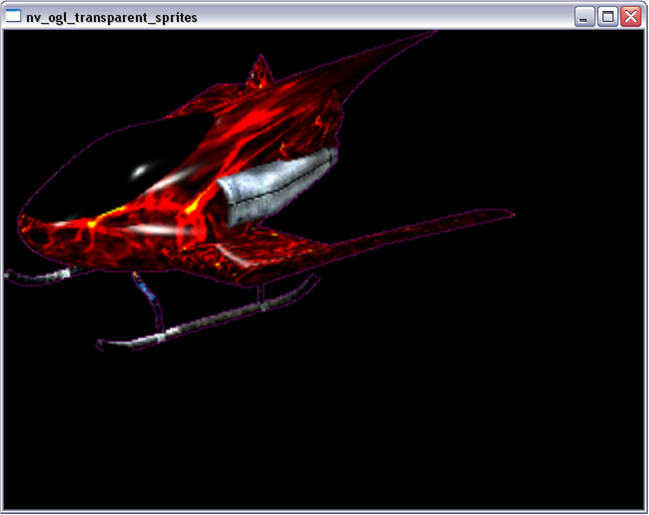
And there you have it! You can now render 2D sprites as efficiently as you would in Direct3D! Sure it's a little more code, but in the end it works! Of course, you could always make your own C++ wrapper classes or stuctures, but I wanted to keep things simplified for educational purposes. I'm also sure that there are many ways this code can be improved, but you can implement improvements as you see fit to your own code. If you have any questions or suggestions about this, please e-mail me at blueshogun96@gmail.com. Happy coding!
References:
Related Tutorials

Procedural Generation of 2D Tile Maps in Games
The article explains how to build a procedural 2D cave map generator using cellular automata. It covers map representat…

Localizing A Game Into French — Which Variant Should You Choose?
So, you’re making an awesome indie game, and now you’re thinking about localizing it into French? Great idea! There ar…
 Level Up Translation

How Long Does It Take To Localize An Indie Game?
So you’re planning on localizing your indie game, but you’re not sure how much time to schedule in. While the timing o…
Level Up Translation

Creating game videos: best practices and pitfalls to avoid
Game video production: practical tips on how to create a game trailer or teaser that you can be proud of. Give your aud…
 Alconost

Adopting CI/CD: How Midwinter Entertainment iterates at speed with the help of IMS
Game development was once like one long sprint: a huge effort until you reached the finish line — at which point you co…
 GameDev.net

5 Things to Consider When Making a Video to Promote Your App or Game
How can you show an app or game in your video in a way that attracts new users? Let’s take a look at what to go by when…
Alconost
Discussion
More from Brandon Fleming
Comparing Shadow Mapping Techniques with Shadow Explorer
New Incentives and a Whole New Platform From The Intel AppUp developer program
The final installment in this series on Intel's AppUp program details additional incentives and opportunities for devel…
The Game Maker
This book excerpt contains the first chapter of the book that introduces beginning game developers to the Game Maker pr…
Discussion