
Multilevel-Multiplayer with Unity
My experience with Unity by creating a Multilevel-Multiplayer application
Development considerations
Unity is a great tool, you directly work in a 3D scene where you can add objects and manipulate the terrain. For each object you can add different components, that are already existing in Unity, or you can implement those. Unity has also an Asset store where you can find a lot of 3D objects/scripts. The debugging part is also very interesting, when you run the application you can switch to Scene View and make modifications as you want and see results directly in your Game play. I also took into consideration Unity because I'v used .NET for over 6 years, so I'm used to it. Unity also can be used with JavaScript, but for me it was easier to work with C#.Networking
There are a lot of articles about networking in Unity, I don't want to go deeper into that, but basically there is a MasterServer that handles the communication between applications. One of those applications can be the server that can handle the server operations, and all the clients go through the server and send information through RPC (Remote Procedure Call).Multilevel-Multiplayer in Unity
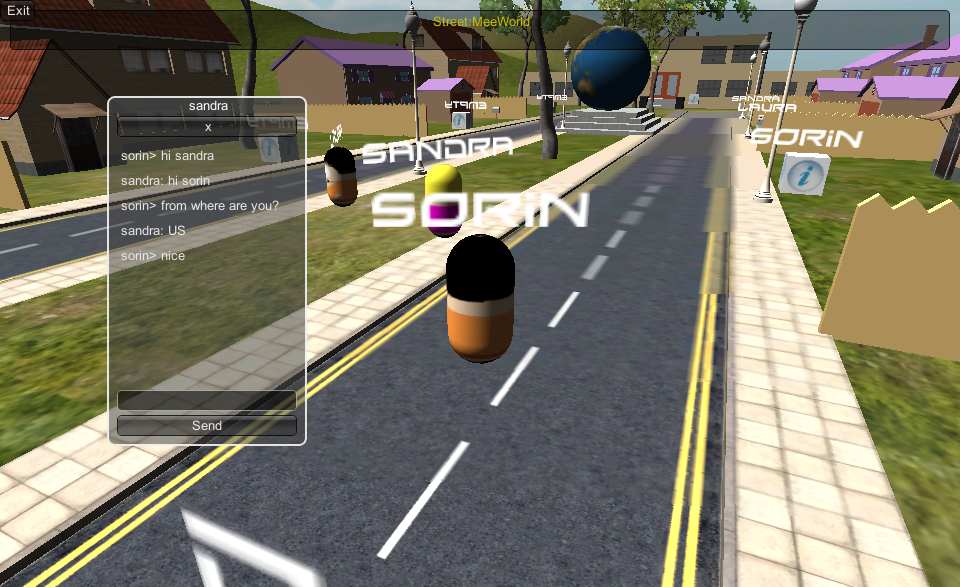
The application currently has different streets, where there are different buildings. So a user can go to a street where can meet other users, so for that I had to send the position of the users only to those from that street. Ok, and how to do that? Unity has NetworkView.group, and SetLevelPrefix() but it didn't help me for a multilevel-multiplayer application. This was the hardest part to make, because I didn't find anywhere exactly how to do that with Unity. Of course, you can find some third-party that can be used.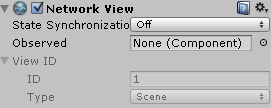
void Update() { if (lastLocalPlayerPosition != localPlayerObject.transform.position || lastLocalPlayerRotation != localPlayerObject.transform.rotation) { networkView.RPC("ServerUpdatePlayerPosition", RPCMode.Server, lastLocalPlayerPosition, lastLocalPlayerRotation, level); } } On server(filter the players and send the update only to the ones from the same level): [RPC] void ServerUpdatePlayerPosition(Vector3 pos, Quaternion rot, string level) { foreach (PlayerProperties player in server_OnlinePlayers.Values) { if (player.Level == level && player.NetworkPlayer != Network.Player) networkView.RPC("ClientUpdatePlayerPosition", player.NetworkPlayer, p, pos, rot); } } On other clients: [RPC] void ClientUpdatePlayerPosition(NetworkPlayer p, Vector3 pos, Quaternion rot) { var thePlayer = FindPlayer(p); if ( thePlayer != null && thePlayer.GameObject != null) { var controller = thePlayer.GameObject.GetComponent<ThirdPersonControllerC>(); controller.position = pos; controller.rotation = rot; } } Some Tricks
How to send custom objects through RPC calls.
Unity does not allow sending on RPC calls according to their documentation; only int/string/float/NetworkPlayer/NetworkViewID/Vector/Quaternation. To send a different type of object you must serialize the object and de-serialize. First I used strings for that but it was a problem with strings larger than 4096 chars, and then I found that that Unity accepts also arrays of bytes, so I used this feature. For example to send an object UserMessage with different properties (Date, UserId, Message, Type,..etc.) through an RPC call, it's impossible because that object is not accepted, so I serialize the object like this: public static byte[] Byte_ConvertObjectToBinary(object obj) { MemoryStream o = new MemoryStream(); BinaryFormatter bf = new BinaryFormatter(); bf.Serialize(o, obj); return o.GetBuffer(); } and send through a rpc call: networkView.RPC("Server_NewMessageAdded", networkPlayer, Utils.Byte_ConvertObjectToBinary(userMessage )); and on the client de-serialize: public static object Byte_ReadFromBinary(byte[] data) { if (data == null || data.Length == 0) return null; var ins = new MemoryStream(data); BinaryFormatter bf = new BinaryFormatter(); return bf.Deserialize(ins); } How to attach a custom object to a game object
(that is not derived from MonoBehaviour): I added to the game object an empty object that has a TextMesh, so on text property I serialize an object as a string, and when I need the object I de-serialize the object back and use it.Free 3D objects
For this application I needed some 3D objects, but I'm not a 3D modeler so I needed some objects to place into the application. Sketchup is a great tool, where you create or find a lot of free 3D models. Also on Unity Asset store there are a lot of free objects.Conclusion
Working with Unity was great, and for me was a new experience to see how 3D game application can be done. Another great thing with Unity is that the application can be compiled for: Windows/Linux/Android/BlackBerry/iOS/Windows Phone 8/unity WebPlayer/XBOX/Wii. If you have questions or do you want to help on continuing this application please don't hesitate to contact me. Thanks for reading, SorinRelated Tutorials

Procedural Generation of 2D Tile Maps in Games
The article explains how to build a procedural 2D cave map generator using cellular automata. It covers map representat…

Localizing A Game Into French — Which Variant Should You Choose?
So, you’re making an awesome indie game, and now you’re thinking about localizing it into French? Great idea! There ar…
 Level Up Translation

How Long Does It Take To Localize An Indie Game?
So you’re planning on localizing your indie game, but you’re not sure how much time to schedule in. While the timing o…
Level Up Translation

Creating game videos: best practices and pitfalls to avoid
Game video production: practical tips on how to create a game trailer or teaser that you can be proud of. Give your aud…
 Alconost

Adopting CI/CD: How Midwinter Entertainment iterates at speed with the help of IMS
Game development was once like one long sprint: a huge effort until you reached the finish line — at which point you co…
 GameDev.net

5 Things to Consider When Making a Video to Promote Your App or Game
How can you show an app or game in your video in a way that attracts new users? Let’s take a look at what to go by when…
Alconost
Discussion